![GJ-fagbank-logo-2.png]](https://base.gronnjobb.no/hs-fs/hubfs/GJ-fagbank-logo-2.png?height=40&name=GJ-fagbank-logo-2.png)
Conducting a SJA
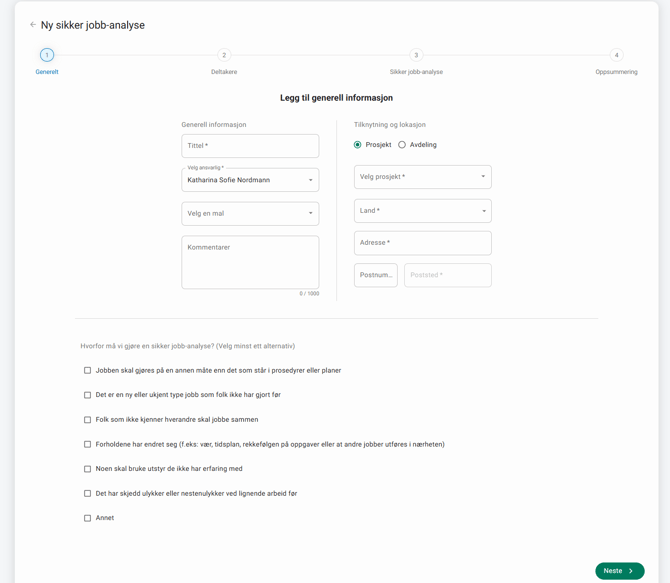
When you create a new safe job analysis, whether you do so on the web or in the app, you begin by entering general information in the first step. Here, you must specify whether the analysis is to be carried out for a project or a department. The address is automatically populated based on the selected project or department, but you can change it if needed.
You also specify why the safe job analysis is being conducted. You must select at least one reason, but you can choose multiple options if applicable.
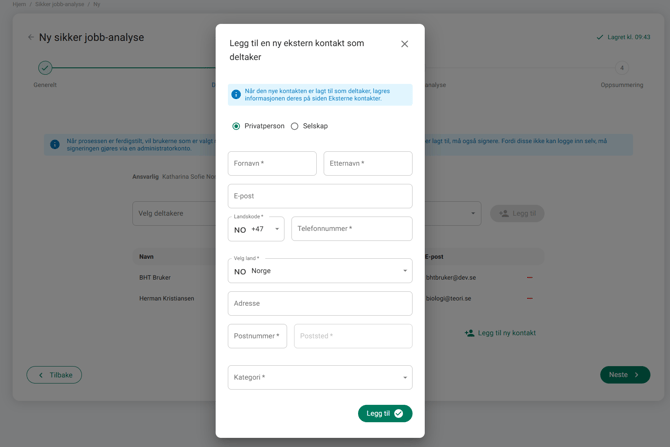
In Step 2, you specify who will participate in the analysis. In addition to your own employees, you can also select external contacts or HSE advisors from Grønn Jobb. If you want to add someone who is not already registered as a contact, you can add them directly from the participant list. The person will automatically be created as an external contact and added to the participant list at the same time.
The participants you select are also the ones who must sign the safe job analysis once it has been completed. External contacts and HSE advisors sign through an administrator account.
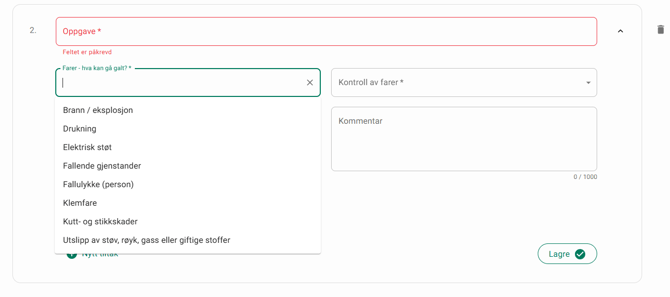
In Step 3, the analysis itself is displayed. If you have selected a template, its sections and tasks will be shown. If you are not using a template, you must first create a section and then add the individual tasks that will be included in the analysis.
You can now complete the analysis by documenting dangers, assessments, and measures. In the "What could go wrong?" field, we provide a number of suggested dangers that you can choose from. If none of the suggestions are suitable, you can enter your own dangers.
If new measures are created, only employees within the company can be assigned responsibility for them. You can choose whether a measure should be created as a task in the system or simply documented within the analysis. If you check the box, the responsible person will be assigned a task and notified. If you leave the box unchecked, the control measure will only be documented in the safe job analysis.
In this step, the information you enter is automatically saved every minute, allowing you to leave the analysis and continue later. In the previous steps, your information is saved when you proceed to the next step.
The final step provides a summary of all the information you have entered so that you can review it before completing the analysis. When you are ready, click "Complete". The safe job analysis will then be sent for signatures. All participants selected in Step 2, including the responsible person, will be notified that they have a SJA to sign.
If you are not ready to complete the analysis or do not want to notify the participants yet, you can leave the analysis and continue later. The analysis will remain in the list with the status "In Progress".
Signatures
At the bottom of the SJA page, you can view the status of all signatures. If you are an employee and have received a notification that you need to sign a SJA, you can do so by clicking the button at the top of the page. Once you have confirmed that you have read and approved the documentation, the signature list will be updated with the date and time of your signature.
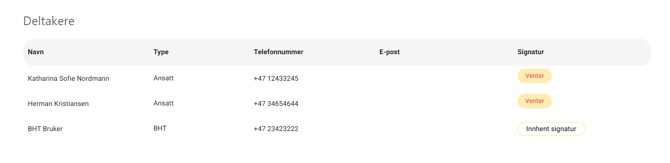
External users cannot log in to the system to sign the analysis themselves and must therefore receive assistance from an administrator. The administrator can collect signatures from all external users by clicking "Collect signature". The external user must then provide their signature in the designated field and confirm it. The signature is stored together with information about which administrator account was used to collect it.
Once all participants have signed, the analysis status changes to "Signed", and the work can begin.
Editing a SJA
If it becomes necessary to edit the analysis after it has been sent for signatures, you can do so by clicking the "Edit" button at the top of the page.
Please note that if you edit a SJA after it has been sent for signatures, all existing signatures will be reset, and all participants will need to sign the analysis again.