![GJ-fagbank-logo-2.png]](https://base.gronnjobb.no/hs-fs/hubfs/GJ-fagbank-logo-2.png?height=40&name=GJ-fagbank-logo-2.png)
All information on the page depends on the filters you select at the top of the page. They are automatically set to the current quarter and year, as well as all employees in the entire company. This means that the statistics you see when you enter the page are based on all employees in the current quarter. You can change the filters to see statistics for a different quarters or for the entire year, or to see individual departments or employees.
Historical data
The statistics are updated automatically when you make changes to the system. If an employee's employment status changes and you register this in the system, the statistics will treat the change as part of the history.
This can, for example, apply to employees who change departments or change their work percentage. As long as you register the correct information at the right time, the statistics will always show correct numbers.
If an employee changes departments, absences registered before the date of the change will still belong to the previous department.
If an employee changes their work percentage, man-days and absence days registered before the change date will be calculated based on the old work percentage. From the date the change takes effect, man-days and absences will be calculated based on the new work percentage.
When an employee is set as inactive, you can no longer filter directly on that employee. Absences registered before the inactivation date will still be included if you filter on the entire company or department the employee belonged to.
Overview
Under the title Overview, you will find a summary of the data for the period you have filtered. The figures are based on vacation and absences registered in the calendar of each employee.
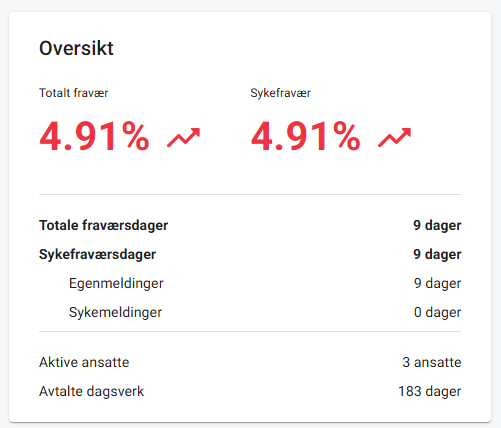
Total absence - Shows the total absence percentage for the selected period and the selected department/employee. The color and arrow show whether the absence is higher, lower or the same compared to the previous period. If you filter by quarter, it compares to the previous quarter, and if you filter by year, it compares to the entire previous year. The percentage here is shown with 2 decimal places, so if the absence is lower than 0.005% it will be shown as 0%.
Sick leave - Shows the absence percentage due to sick leave. Sick leave is categorized as self-certification and medical certification. The color and arrow follow the same logic as the total absence, but only compares to the sick leave from the previous period.
Total absence days - Shows the number of days of absence for the selected period and the selected department/employee. For full-time employees, 1 day of absence is calculated as 1 day of absence, but for part-time employees it is multiplied by the position fraction. An employee with a 50% position who is absent for 1 day then has 0.5 days of absence.
Sick leave days - Shows the number of days of absence due to sick leave. Here you can see the total number and the number per type; medical certification and self certification. These days of absence are calculated in the same way as the total absence, for employees with different percentages of position. The sick leave percentage is also included if there is a sick leave. An employee who works 50% and is sick leave 20% for 5 days therefore has 0.5 days of sick leave.
Active employees - Shows how many employees were employed at the same time during the period. The field listens to the employees' start and end dates. If an employee starts or leaves in the middle of the period, they are included here, but the agreed man-days are adjusted based on the start and/or end date. If an employee has an end date registered, but is set back to active again at a later time, no history is saved when they were inactive. The man-days are only calculated on the start and end date registered for the employee.
Agreed man-days - Shows how many working days the employee has agreed to work during the period. Calculated based on whether the company uses a 5 or 6 day week, whether there are red days, and whether there are registered vacation days in the personal calendar. If you change the employment percentage or department of an employee, this history is saved and affects the man-days. The employee is therefore counted in the first department until the day you switch, and in the second department after the switch. The same applies to the employment percentage. The man-days (and absence percentage) are calculated on the previous employment percentage until the day you switch, and on the new employment percentage after you switch.
Absence per gender
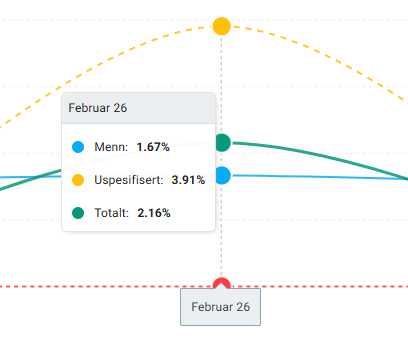
The graph shows how the absence percentage has changed from month to month. The different lines in the graph show the development for different genders. You can see which genders the different colors represent in the categories above the graph. You can control which lines you want to see by clicking on the categories to hide or show the selected line.

Below the graph are the different absence categories. Sick child and other leaves includes all absences that are not related to the employee's own illness. The employee's own illness is categorized based on whether it is self-reported or doctor-reported, as well as the length of the absence.
The length of sick leave is based on calendar days of consecutive absence. This is not the same as absence days. An employee who works full-time 5 days a week and is sick for 3 weeks has 15 absence days, but the length of the absence is 21 days. If the employee works 50% and is sick for the same period, they have 7.5 absence days, but the length of the absence is still 21 days.
You can choose to filter the graph based on absence categories as well. Click on the category to choose whether or not that category should be included in the percentage. By default, all categories are included and are yellow. When you click on a category and it turns gray, the percentage is displayed based on only the remaining categories.

The scale on the left is dynamic based on how much absence is registered with you. To see the exact numbers for a single month, you can hover your mouse over that month. The exact percentage for the different genders will then be displayed. If a gender is not listed when you hover your mouse over the month, it means that there is 0% absence for that gender.
Comparison to last year
This graph compares the absence percentage for a selected period with the same period last year. If you choose to filter by quarter, it compares month by month, while if you choose to filter for the entire year, it compares quarterly. The green bars represent the year you have selected in the filter, and the yellow bars represent the previous year. Here it is only divided into sick leave and other absence, but you can still use the categories above the graph to hide or show the different bars.
Types of absences per gender
Below you see three pie charts; one for women, one for men and one for all employees. Each chart shows how much of the total absence belongs to each category. The same categories are used here as in the top line chart. Sick leave is divided into doctor-reported and self-reported, as well as the length of the absence. Sick child and other leave includes all absence that is not related to the employee's own illness.
The percentage shown in the graph is not the same as the absence percentage. It shows the percentage of all absences that each type of absence accounts for. If 3 out of 10 absence days are due to a sick child, the slice of the pie showing Sick Child will be 30%.
Absences per type
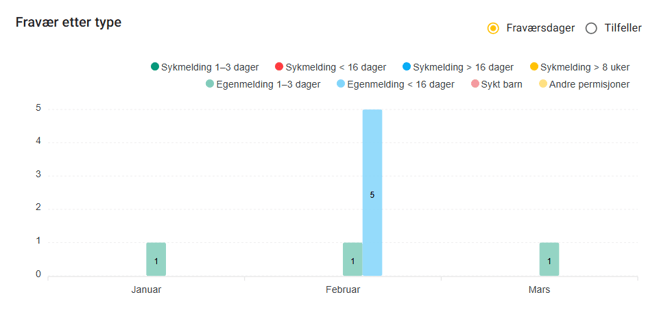
The last graph on the page shows how many absence days and how many cases of each absence category have been registered. The same categories are also used in this graph, where sick leave is divided into self-reported and doctor-reported, as well as the length of the absence, and other absence is divided into sick child and other leaves.
You choose whether the bars should show the number of absence days or the number of cases by clicking on the radio buttons above the graph. A case is considered a continuous absence of the same type. Several different registrations may have been made in the calendar, but if all the registrations have the same type and there are no working days between the registrations, they are considered one case. Absence days are calculated in the same way as described under "Overview", and depend on the employees' percentage of employment and percentage of sick leave.
Here you can also choose to filter out bars if you do not want to see them all at once. Click on the category you don't want to see, and it will be grayed out. To see the bar again, just click on it again.