![GJ-fagbank-logo-2.png]](https://base.gronnjobb.no/hs-fs/hubfs/GJ-fagbank-logo-2.png?height=40&name=GJ-fagbank-logo-2.png)
Whether you create your own routines or use ready-made suggestions from Grønn Jobb, you can require that those who read the routine confirm that they have read it. If you create a routine yourself, you can select this when you create the routine. In the first step, you will find a checkbox for read confirmation. When you check the box, you can choose whether read confirmation should be required from everyone, or only from selected employees. Which employees you can select depends on who the routine applies to.
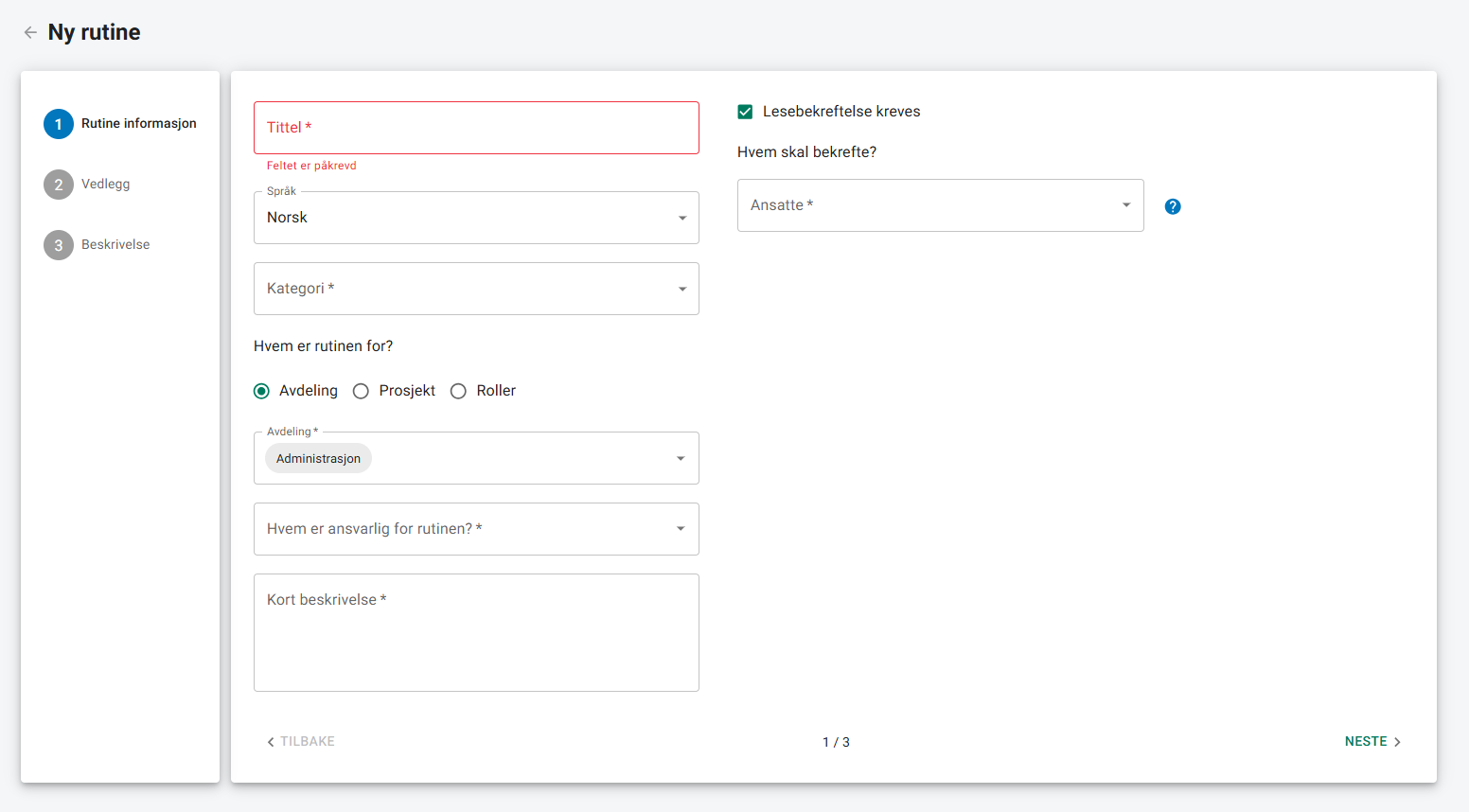
When you create a routine, notifications are not sent to employees right away. You must first activate the routine. This means that you can work on the routine and make changes before anyone is notified.
If you save a routine suggestion from Grønn Jobb, or do not add read confirmation when you create the routine, you can add it later. Click "Edit" on the routine, and you will find the read confirmation checkbox there.
If the routine is not active, the notifications are sent when you activate it. If the routine is already active, the notifications are sent as soon as you save.
If you edit a routine that already requires read confirmation, you will be asked if you want to reset existing confirmations.
– If you select "Yes", all previous confirmations are deleted, and new notifications are sent.
– If you select "No", the changes are saved without sending new notifications.
If you add new people to confirm reading, they will always receive a notification.
Confirm to have read
If you are asked to confirm that you have read a routine, you will receive a notification. You can click the notification or go directly to the menu item Routines.
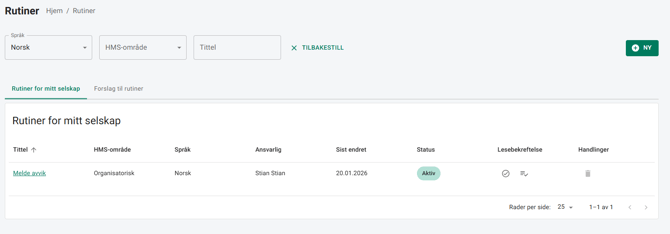
In the routine list, both in the app and on the web, you will see a round icon next to routines that require a read confirmation. When you open the routine, you will find the button "Confirm that you have read". When you click this, a notification will be sent to the person who requested the confirmation.
People who can edit or create routines, as well as the person responsible for the routine, can always see who has confirmed reading and who has not. You can find this overview in the list view by clicking the icon in the column for read confirmations.